Access permissions  

Lamin allows you and your users to manage access similar to how you’d do it on GitHub, Google Drive, Microsoft Sharepoint, or Notion. Your infrastructure team stays in full control over storage & database permissions directly on AWS or GCP.
How to
Manage database collaborators
You need to be a database admin.
Open the Settings tab of your database, then select Collaborators > Users. You’ll see the current collaborators, their roles, and access inherited through teams and spaces.
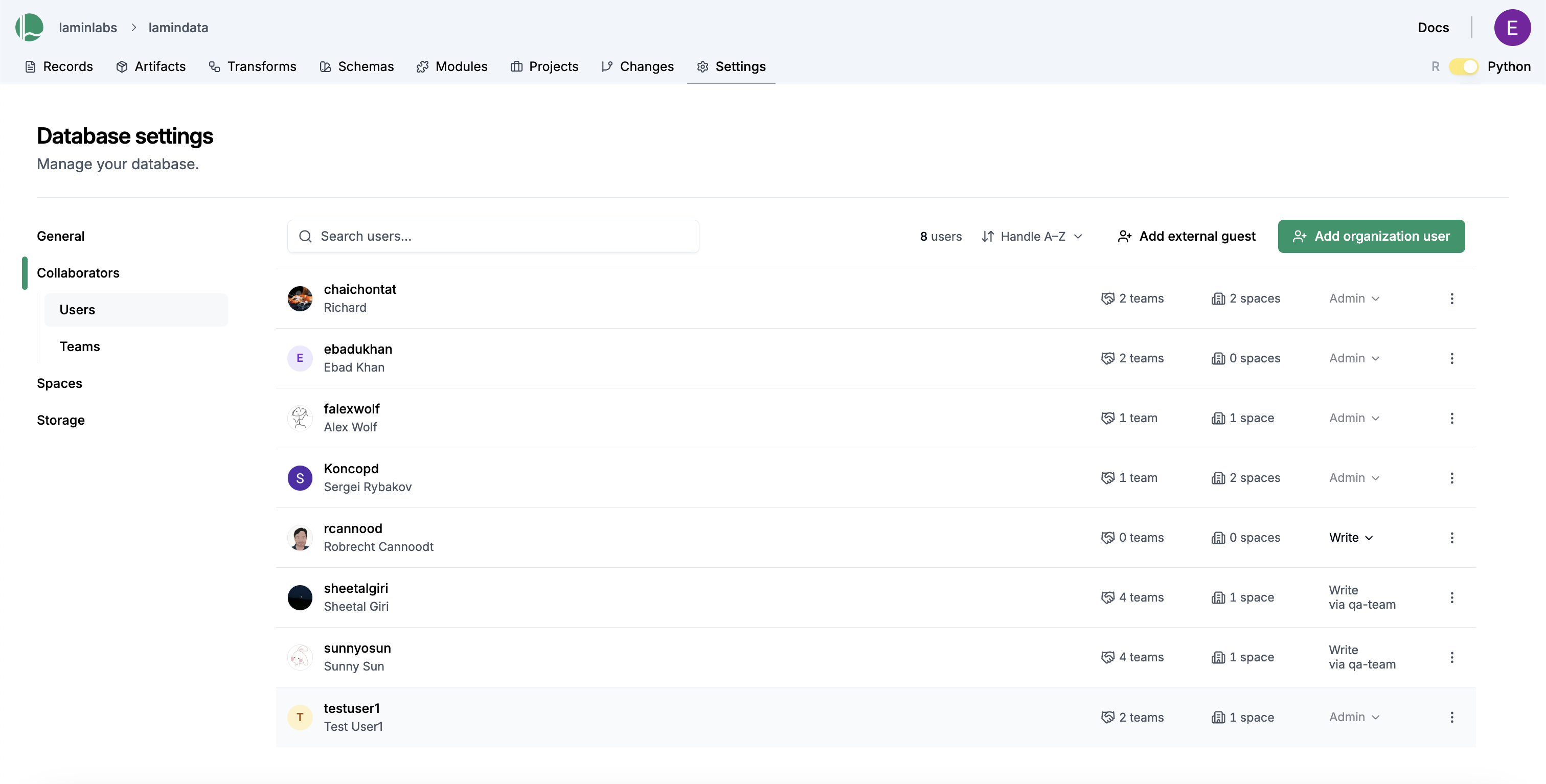
Click Add organization user to add an organization user, or Add external guest to invite an external user.
Change a direct collaborator’s role using the role dropdown in their row. To remove them, open the three-dot menu and select Remove collaborator.
Select Collaborators > Teams to grant access to a team.
Manage space collaborators
Spaces allow restricting access to the objects inside it to a small set of collaborators.
To create a space, open the Spaces tab of your organization and click Create space.
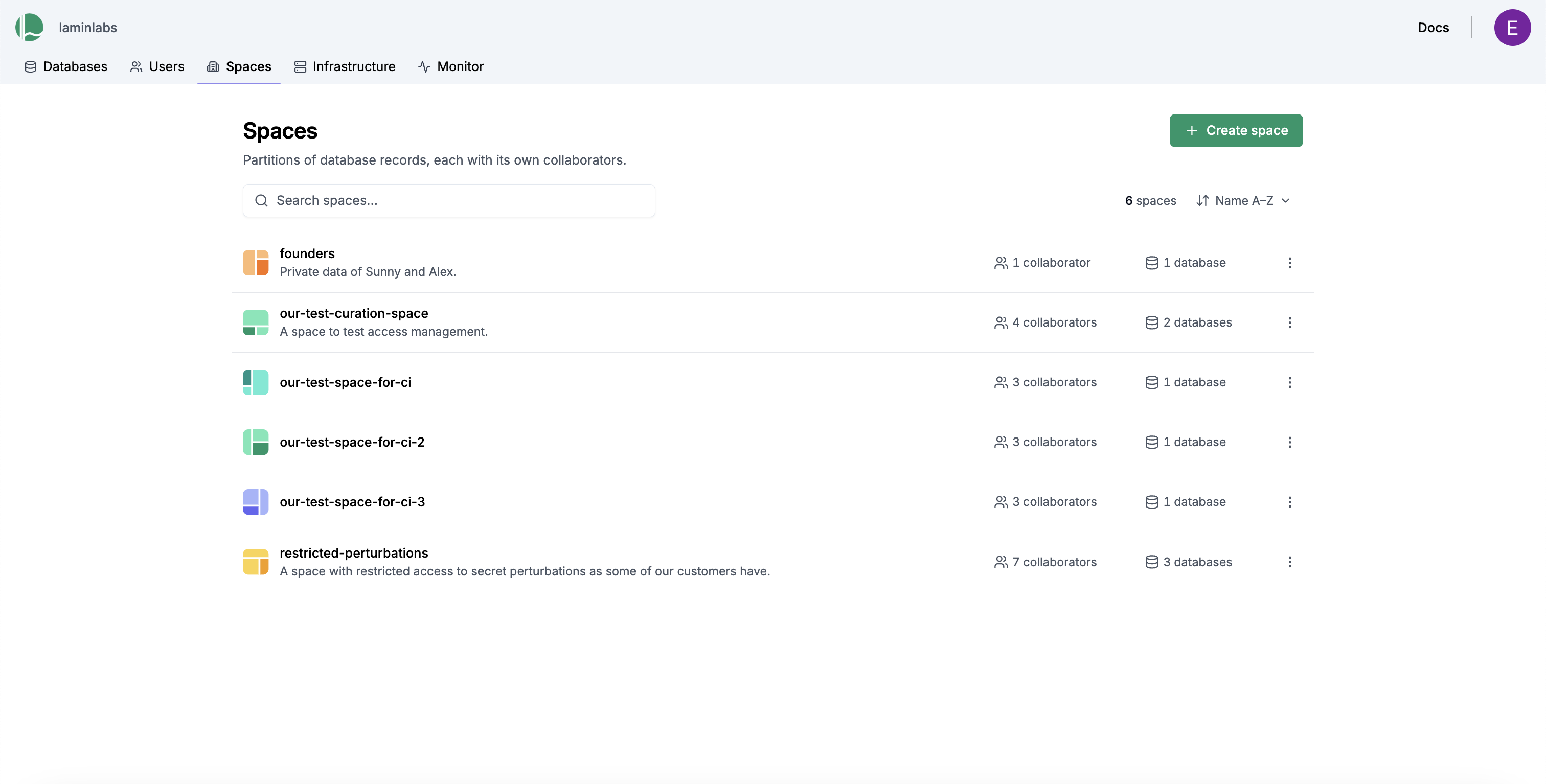
To add a collaborator to your space:
Open the collaborator list for the space and click Manage collaborators.
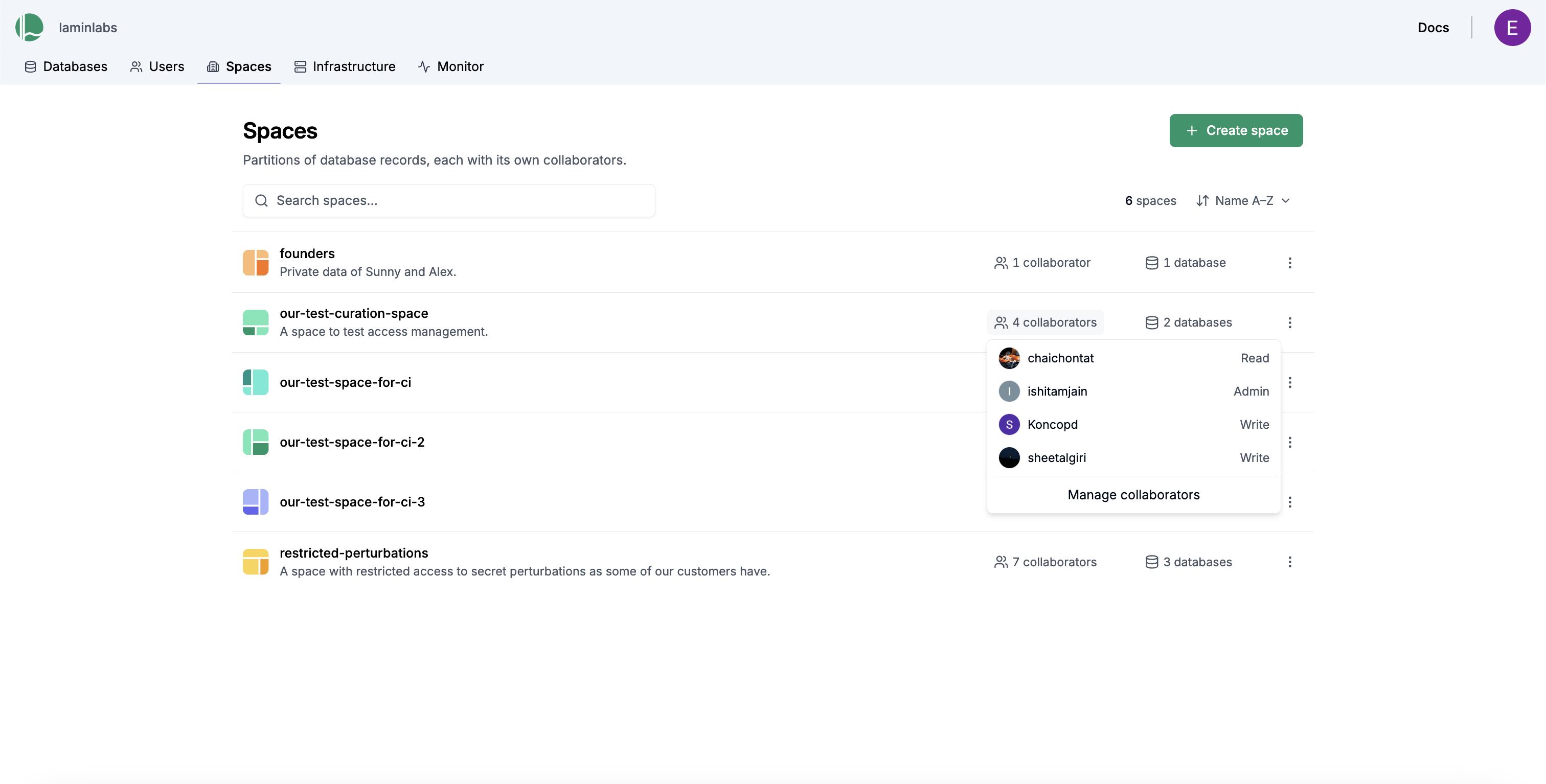
Click Add collaborator and select a user or team.
Change the access role if you want the collaborator to have more than read access.
To use a space in a database, open the database’s Settings > Spaces page and click Attach space. You need admin permissions for both the database and the space.
Move objects into a space
To upload an artifact to a restricted Space, pass a space name to --space in lamin save:
lamin save ./myfile.txt --key myfile.txt --space "Our space"
You can pass the space argument when creating objects:
space = ln.Space.get(name="Our space")  # get a space
ln.Artifact("./test.txt", key="test.txt", space=space).save()  # save artifact in space
You can pass a space or space name to track(), which automatically saves all artifacts, collections, transforms, runs and other subsequently created objects in that space:
ln.track(space="Our space")
ln.Artifact("./myfile.txt", key="myfile.txt").save()  # saved into space "Our space"
To move an entity into a restricted space, set the .space field of its record:
space = ln.Space.get(name="Our space")  # get a space
record = ln.Record.get(name="existing label")
record.space = space
record.save()  # saved in space "Our space"
Artifacts saved into a restricted space are stored in a storage location that belongs to that space. Database collaborators who are not space collaborators cannot obtain credentials for those files. See Storage permissions, federated credentials, and spaces.
Manage teams
Teams allow you to manage permissions for groups of users collectively, making it easier to handle access for departments or project groups.
Go to Users > Teams on your organization page. The list shows each team’s members and its database and space access.
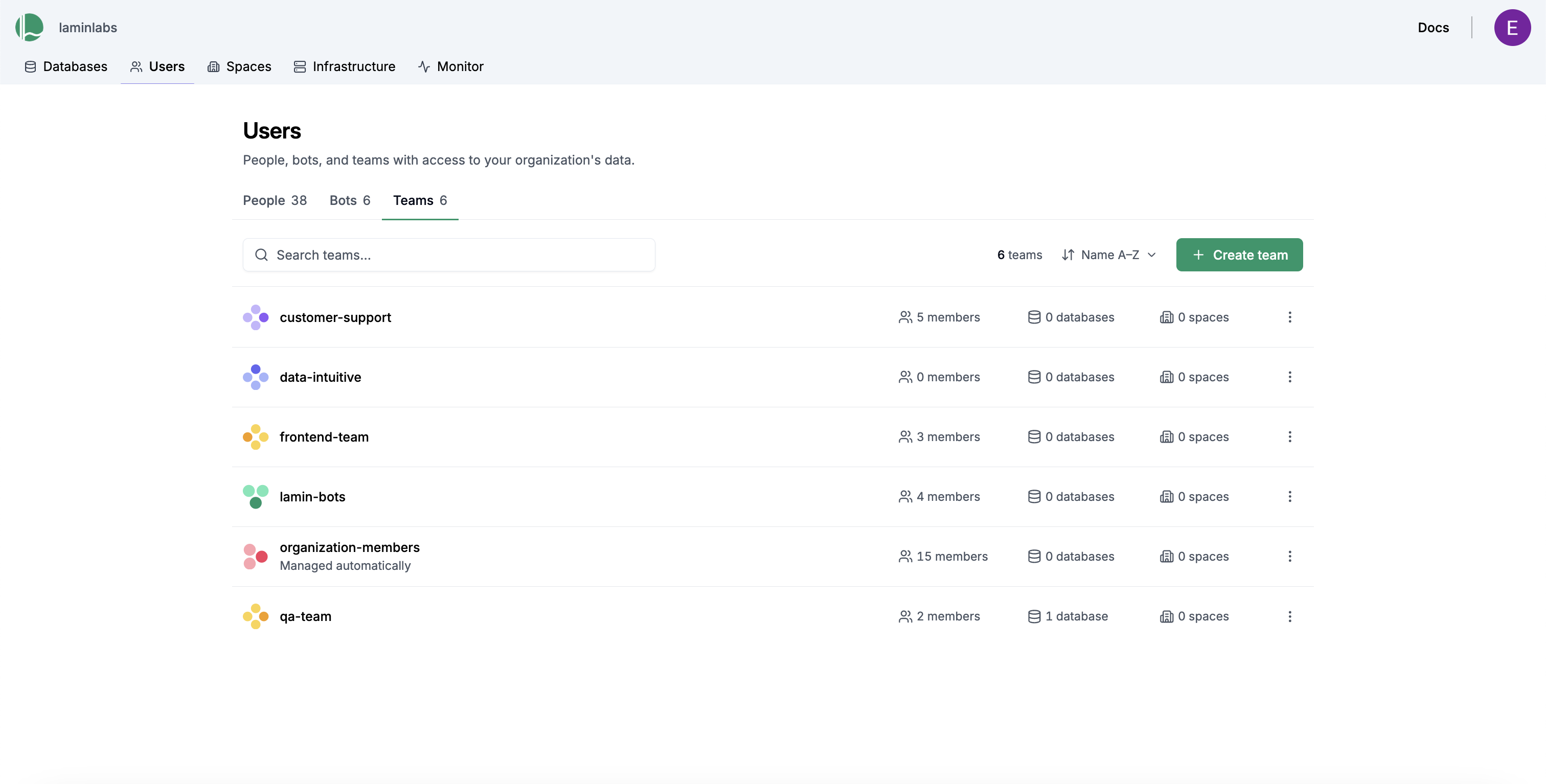
To create a team, click Create team, enter a name, and save it. Click the member count next to a team to manage its members. Click the database or space count to review and manage the resources the team can access. Team members inherit the permissions granted to the team.
Manage bot accounts
Bot accounts bundle access permissions for a particular bot, agent, or service. By making a bot a collaborator on a database or space, you grant it access in the same way as a user or team. Unlike teams, bots authenticate with their own API keys; like teams, they are managed by users. Bots are useful for limiting the resources available to automations and agents.
Organization admins and managers can create bot accounts. The creator automatically becomes a bot admin, and organization admins can manage every bot in their organization. Managers can see all bots in their organization, but can only manage or create API keys for bots they created or were explicitly granted access to. Other organization members only see bots they can access directly or through a team.
To create a bot account:
Go to Users > Bots on your organization page.
Click Create bot, enter a handle and optional name, and click Create.
Open the three-dot menu next to the bot and select Manage API keys.
Click Create API key, optionally enter a description and expiration, and generate the key. Copy it immediately — the plaintext key is shown only once. A bot can have up to five API keys.
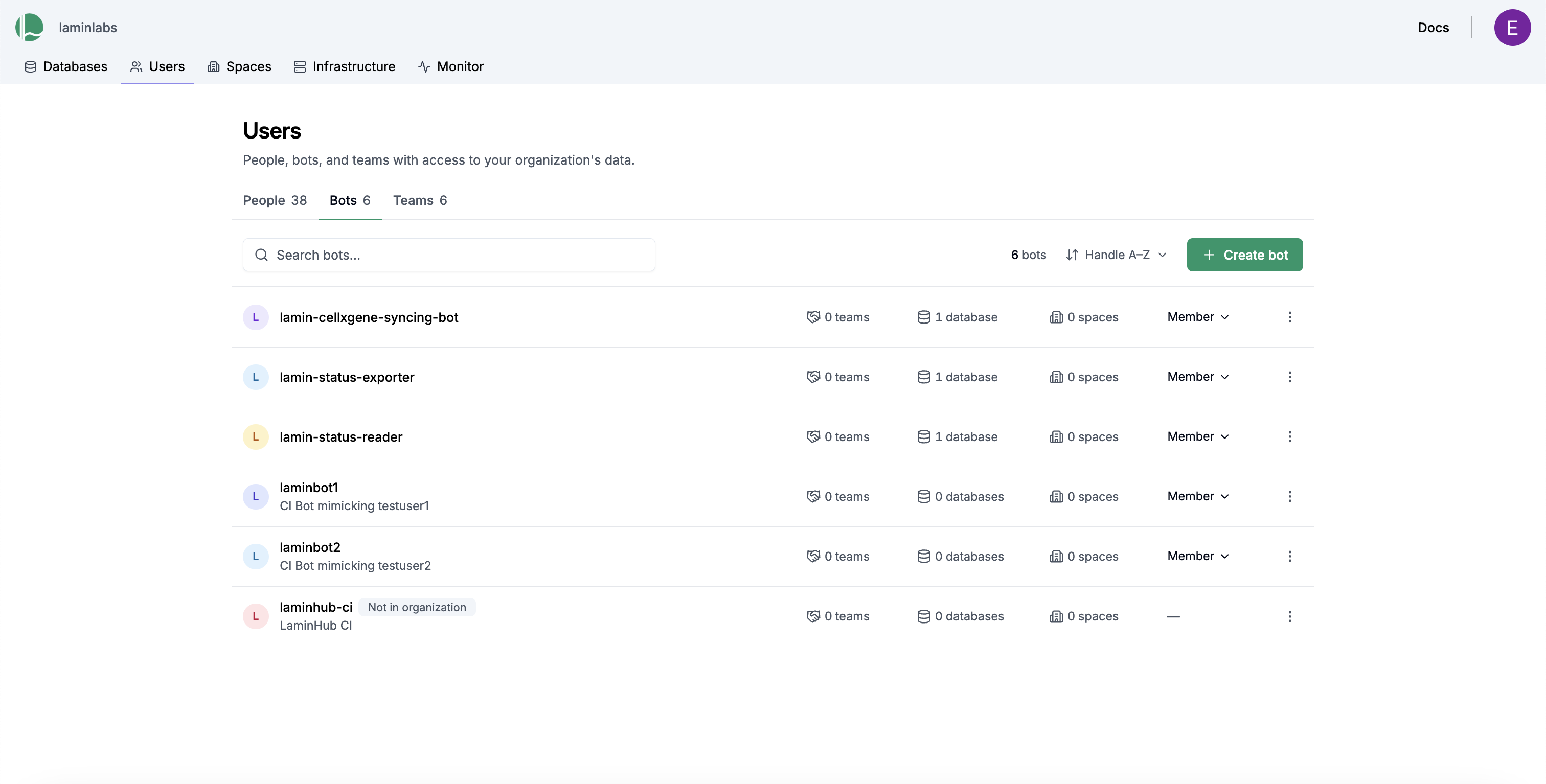
To manage who can use and administer a bot:
Open the three-dot menu next to the bot and select Manage collaborators.
Add an organization member or team. New entries receive the Collaborator role by default.
Change the role to Admin if the member or team should manage the bot. Guests can be collaborators but cannot become bot admins.
Bot collaborators can create API keys and view metadata for all of the bot’s keys. They can revoke keys they created themselves. Bot admins can also edit or delete the bot, manage its collaborators, and revoke any of its API keys.
Important
An API key acts as the bot and receives the bot’s database and space permissions. Anyone granted collaborator access can create such a key, so only grant bot access to trusted organization members or teams.
Removing a collaborator does not revoke API keys they previously created. A bot admin must revoke those keys separately.
To add a bot as a collaborator to a database:
Go to Users > Bots on your organization page and find the bot account.
Open its three-dot menu, select Manage access to databases, and add the database.
You can also add bots as collaborators to spaces, just like you add human users as collaborators to spaces.
An examplary use case
An ml-team and a curation-team collaborate across spaces to serve the wider organization:
Space |
Description |
Access |
|---|---|---|
Default |
Contains common assets like ontologies, tutorials, and non-sensitive datasets accessible to everyone within the database. |
Every database collaborator has read or higher levels of access. |
Restricted |
Stores sensitive curated data requiring stricter access permissions. |
A |
Restricted |
Contains machine learning models, development resources, and potentially experimental data. |
Only |
Concepts
Lamin’s access management is built on:
Users: User accounts belong to human users and own resources like databases.
Organizations: Organizational accounts can be accessed by the organization’s members and own resources like user accounts.
Teams: Groups of users. Roles and permissions can be assigned to teams like for users.
Bot accounts: Bot accounts bundle permissions for organization-owned bots, agents, and services. Users and teams govern them through bot roles. API keys authenticate as the bot and receive the bot’s database and space permissions.
Databases: LaminDB instances are SQLite or Postgres databases operated through LaminDB.
Spaces: You can divide a database – a LaminDB instance – into multiple spaces to restrict access. You can manage space collaborators in the same way as database collaborators.
Storage locations: Storage locations hold the files behind artifacts. There is no standalone storage role: for managed S3 locations, access is implied by a user’s instance and space roles and enforced with short-lived federated AWS credentials. See Storage permissions, federated credentials, and spaces.
Spaces
Spaces allow to restrict permissions for any object in a database, i.e., a LaminDB instance:
Each space has its own set of collaborators with their roles and permissions, independent of database-level roles.
Users must be both database collaborators AND space collaborators to access resources in a space within a database.
Spaces must be attached to a database before objects from that database can be moved into the space (you need both database and space admin permissions to attach the space to a database). Attaching a space to a database
Xcreates a dedicated storage location for that space, managed by databaseX.Any object in LaminDB can only be in a single space. An artifact’s
SQLRecordspace and its storage location are related but distinct: the record space governs metadata access, the storage location governs file access.
The default space of a database: Every database includes a default all space analogous to the default main branch. This space holds common resources that are meant to be accessible to all database collaborators.
Read collaborators: All collaborators added to a database automatically receive read access to the default
allspace.Write collaborators: Collaborators granted write or admin permissions to the database automatically receive write access to the default
allspace.
Teams
Teams provide a way to manage permissions for groups of users for databases and spaces. Users can be collaborators either directly as individual users or through team membership.
Storage locations
Storage locations hold the files underlying artifacts. LaminHub storage access control applies only to managed S3 locations that issue federated credentials. Access is not assigned on the storage location itself; it is derived from database and space collaborators.
Storage in the default
allspace inherits the database collaborator role.A storage locations that’s managed by a restricted space inherits access rights from that space.
Public managed storage still uses the collaborator role when the caller is a collaborator. Callers who are not collaborators (including anonymous) get read access.
To restrict files as well as metadata, keep artifacts in a storage location that belongs to the same restricted space, which is the default behavior. See Storage permissions, federated credentials, and spaces.
Roles
Organization roles
Role |
Description |
|---|---|
Admins |
Manage organization members, teams, databases, spaces, all organization bots, and organization settings (domains/SSO). Database/space data access still requires database/space roles. |
Managers |
Same as admins, except they cannot grant/revoke the organization admin role, manage organization settings, or implicitly manage every bot. They can create bots and manage bots for which they have the bot admin role. |
Members |
Can be granted access to specific resources (teams, databases, spaces, and bots) based on assignments, and manage resources for which they have an admin role. Default access is limited. |
Guests |
Intended for external collaborators with limited access, typically restricted to explicitly assigned databases, spaces, and bots. Guests cannot administer bots. |
Team roles
Role |
Description |
|---|---|
Admins |
Can add/remove team members, define member roles within the team context, and manage team resources or settings. Can typically perform any action a member can. |
Members |
Can access resources granted to the team (e.g., specific databases or spaces). |
Bot account roles
Organization admins can manage every bot owned by their organization without an explicit bot role. Other users can receive bot access directly or through a team.
Role |
Description |
|---|---|
Admins |
Can edit or delete the bot, manage its collaborators, create API keys, view API-key metadata, and revoke any API key. Guests cannot receive this role. |
Collaborators |
Can access the bot, create API keys, view API-key metadata, and revoke API keys they created while they still have bot access. They cannot edit the bot or manage collaborators. |
Instance roles
Role |
Description |
|---|---|
Admins |
Can add/remove collaborators from the database, define collaborator roles within the database, and manage database settings. For data access, automatically receive write access to the default “All” space only. |
Read collaborators |
Automatically receive read access to the default “All” space only. |
Write collaborators |
Automatically receive write access to the default “All” space only. |
Note: Permissions for spaces other than the default “All” space must be managed separately and independently of the database collaborator role.
Space roles
Role |
Description |
|---|---|
Admins |
Have full control over the specific space, including managing permissions and content within that space. |
Read collaborators |
Can read data and view resources within that specific space across accessible databases. |
Write collaborators |
Can read, add, and modify data or resources within that specific space across accessible databases. |
Single-sign on protocols
Users sign in with a social login or with their organization’s identity provider, and LaminHub applies that user’s organization, database, and space roles.
Supported sign-in methods:
Social logins: Google, GitHub, and Azure (Microsoft).
SAML 2.0 single sign-on for any compatible identity provider.
OpenID Connect (OIDC) and OAuth 2.0 for any standards-compliant identity provider.
The authorization flow uses Supabase.
SAML 2.0
Configure SAML 2.0 on your identity provider (IdP) with these service provider (SP) details:
Setting |
Value |
|---|---|
SAML version |
2.0 |
SSO method |
SP-initiated SSO |
Assertion Consumer Service (ACS) URL |
|
Entity ID / Audience |
|
Required user attribute |
An attribute that contains the user’s email address. The name can be |
From your identity provider, Lamin needs:
A SAML 2.0 metadata XML file, or a SAML 2.0 metadata URL pointing to the IdP metadata XML.
The email domain(s) to associate with your organization’s users.
The SAML assertion attribute name that contains the user’s email address.
How does it work?
Rather than configuring storage permissions on AWS and database permissions on Postgres, LaminHub allows you to manage collaborators for databases and storage locations in a similar way to how you manage access on Notion, Google Workspace, or Microsoft SharePoint.
However, in contrast to a typical SaaS product like GitHub, LaminHub leaves you in full control of your data with direct API access to databases and storage locations on AWS.
Based on an identity provider (social login, SAML, or OIDC) and a role-based permission system, LaminDB users automatically receive:
Storage access with federated access tokens for managed S3 locations on AWS. These tokens are short-lived and thereby minimize attack surface. The token’s IAM policy is scoped to the storage locations your database and space roles allow; see below. This storage access control is not enforced for unmanaged buckets, GCP, or local storage.
Database access with a database connection string associated with a JWT token applying user permissions through Postgres row-level security (RLS).
Storage access control is enforced only for managed S3 buckets that use federated AWS credentials. Unmanaged S3 buckets, GCP, and local storage are not gated this way: callers use whatever credentials or filesystem access they already have.
For managed S3, storage access is not a separate role. LaminHub derives it from instance and space collaborators, then issues short-lived federated AWS credentials scoped to the storage locations you can access.
How storage locations inherit permissions
Every storage location is managed by a database and a space.
Storage location |
Who receives credentials |
Role used for the token |
|---|---|---|
Default |
Instance collaborators (directly or via a team) |
Instance role ( |
Restricted space |
Space collaborators (directly or via a team) |
Space role ( |
Public managed storage, collaborator |
Instance or space collaborators, as above |
The collaborator role ( |
Public managed storage, not a collaborator |
Anyone, including anonymous callers |
Read |
Public managed storage does not replace collaborator status. Collaborators still receive their database or space role. Read access for everyone is only the fallback when the caller is not a collaborator.
Instance collaborators who are not also collaborators of a restricted private space cannot obtain credentials for that space’s storage. Organization membership alone is also not enough: you need a concrete database or space collaborator role.
If several rules match the same path, LaminHub uses the longest matching storage root and the highest role (admin > write > read).
Federated credentials
When LaminDB reads or writes an object on a managed S3 bucket, it asks LaminHub for credentials for that path. LaminHub:
Resolves the path to a registered storage location.
Looks up your derived role for that location (database role, space role, or public read).
Refuses the request if you have no role and the location is not public.
Otherwise returns a short-lived AWS STS token whose IAM policy is limited to that storage root.
The policy grants s3:GetObject and s3:ListBucket for read access, and additionally s3:PutObject and s3:DeleteObject for write or admin access. If the storage root is a prefix inside a bucket (s3://bucket/space-uid), listing and object access are constrained to that prefix: credentials for one space cannot list or read another space’s prefix in the same bucket.
You do not configure these policies yourself. Connect the bucket from the Infrastructure page of your organization on LaminHub so collaborators receive access through their LaminHub roles instead of long-lived AWS keys.
To request credentials without the Python client, see Get S3 credentials.
Keeping artifacts inside a restricted space
The SQLrecord’s space of the artifact and its storage location are related but distinct. Spaces restrict metadata in the database; managed S3 storage locations restrict the files through federated credentials consistent with spaces.
Saving an artifact into a restricted space automatically uses a storage location that belongs to that space, so on managed S3 the file lands under a prefix that only space collaborators can access.
A space can be attached to many storage locations. Create another managed location with:
space = ln.Space.get(name="Our space")
ln.Storage(root="create-s3", space=space).save()  # new managed location for the space
In the example above, database collaborators can read the default all space and its storage. They cannot read files in the Curation or ML storage locations unless they are also collaborators of those spaces. The "ML Team" can read Curation files because it has read access to the Curation space — its database role alone would not be enough.
Low-level access management
While not necessary, you can still manage access on the AWS, GCP, or database level yourself, provided you have sufficient permissions for the corresponding systems in your cloud infrastructure.
How to configure an AWS S3 bucket for public read access?
You can read about s3 bucket policies here. For a public read-only database the bucket should have s3:GetObject and s3:ListBucket permissions. The example policy is given below:
{
  "Version": "2012-10-17",
  "Statement": [
    {
      "Sid": "AddPerm",
      "Effect": "Allow",
      "Principal": "*",
      "Action": "s3:GetObject",
      "Resource": "arn:aws:s3:::your-bucket-name/*"
    },
    {
      "Sid": "AllowList",
      "Effect": "Allow",
      "Principal": "*",
      "Action": "s3:ListBucket",
      "Resource": "arn:aws:s3:::your-bucket-name"
    }
  ]
}
Change your-bucket-name above to the name of your s3 bucket.
Social logins
Google, GitHub, and Azure (Microsoft). Available on Pro plan.